Post contents
What tools are we learning in this chapter?
Just to name a few, here are some of the styling tools we're not talking about in this chapter:
Given the broad range and number of tools we aren't looking at, what tools are we going to be learning about? Well, in addition to a few built-in browser techniques, we'll touch on:
- Tailwind for its ubiquitous adoption among utility class libraries (nearly 10M downloads a week on NPM)
- CSS Modules for its close-to-bare CSS and invisible usage
- SCSS for its broad adoption (13M downloads a week on NPM) and the ability to compile complex styling to raw CSS
- Emotion for its framework-agnostic approach to runtime CSS-in-JS
- Panda CSS for its framework-agnostic approach to compile away CSS-in-JS
Let's get into it.
CSS is awesome. It's also used in every web app out there, which makes sense given that it's one of the three core languages of the web: HTML, CSS, and JavaScript.
If we wanted to, for example, build the header bar of this mockup:

Our markup might look something like this:
<header class="container"> <LogoIcon /> <SearchBar /> <SettingsCog /> <ProfilePicture /></header>With the container class being defined in CSS like so:
/* header.css */.container { display: flex; padding: 8px 24px; align-items: center; gap: 32px; border-bottom: 2px solid #f5f8ff; background: #fff;}This works out pretty well for some basic styling!

Now let's build out the search box:
<div class="container"> <SearchIcon /></div>/* search-box.css */.container { border-radius: 8px; color: #3366ff; background: rgba(102, 148, 255, 0.1); padding: 8px; flex-grow: 1;}
Now let's import both of these CSS files into the same HTML file:
<link rel="stylesheet" href="header.css" /><link rel="stylesheet" href="search-box.css" />Annnnd:

Oh, dear... It seems like the styling for the header has impacted the search box and vice versa.
This merging of styling is occurring because container is the same CSS identifier between the search box container and the header container; despite being in two different CSS files.
This problem is known as "scoping," and is a problem that gets worse the larger your codebase gets; it's hard to keep track of every preexisting class name that's been used.
BEM Classes
One way to solve this problem of scoping in CSS relies on no external tooling than a self-motivated convention. This solution is called "BEM Classes."
BEM stands for "Box Element Modifier" and helps you establish scoping through uniquely named classes that are "namespaced" based on where on the screen they exist.

The example we demonstrated scoping problems within has two "boxes":
- The header
- The search box
As such, the container for these elements might be called:
.header {}.search-box {}The "Elements" part of BEM is then referring to the elements within each "Box."
For example, both the header and the search box have icons inside. We would then prefix the "Box" name and then the name of the "Element":
.header__icon {}.search-box__icon {}Finally, we have "Modifiers" to complete the "BEM" acronym.
For example, we might want to have two different colors of icons we support; sharing the rest of the styling across all header icons besides the color.
To do this, we'll prefix the name of the "Box" followed by what the "Modifier" does:
.header--blue {}.search-box--grey {}BEM is a viable alternative for large-scale codebases if you follow its conventions well enough. Many people swear by its utility and the ability to leverage the platform itself to solve the scoping problem.
However, for some, even the need to remember what "Box" names have already been used can lead to confusion and other levels of scoping problems.
Let's look at some other alternatives to using the BEM methodology.
Utility Classes
Another way you're able to solve the problem of scoping through convention is by leaning into the shared aspects of CSS classes as styling identifiers.
This means that instead of something like this:
<div class="search-container"></div><style> .search-container { border-radius: 8px; color: #3366ff; background: rgba(102, 148, 255, 0.1); padding: 8px; flex-grow: 1; }</style>We could instead break these CSS rules into modular reusable classes:
<div class="rounded-md padding-md grow blue-on-blue"></div><style> .rounded-md { border-radius: 8px; } .padding-md { padding: 8px; } .grow { flex-grow: 1; } .blue-on-blue { color: #3366ff; background: rgba(102, 148, 255, 0.1); }</style>This means that instead of having one-off classes that are used on a case-by-case basis, we have global classes that are reused across the entire application.
This comes with a few added benefits:
- Only one CSS file to worry about
- Less duplicated CSS shipped
- Easier to visualize styling from markup
But it also has its own downfalls:
- You have to figure out naming for every class; consistency can be challenging
- Your markup ends up cluttered with complex styles represented by many classes
Tailwind
When the topic of utility classes comes up, Tailwind is not far behind.
Tailwind is a CSS framework that ships with all the utility classes you could ever need. Just like rolling your own utility classes, Tailwind's classes can be applied to any element and reused globally.
Our example from before might look something like this:
<div class="rounded-lg p-8 grow bg-blue-50 text-blue-800"></div>While Tailwind doesn't solve the cluttered markup challenges with hand-rolling your own utility classes, it comes with some additional benefits over utility classes:
-
Ease of training. If someone's used Tailwind before, they know how to use it and what class names to use. Moreover, the Tailwind docs are very, very polished.
-
Pre-built styling tokens. No need to figure out what
padding-lgorpadding-xlshould be; Tailwind ships with a strong color palette and sane defaults out-of-the-box for you to use as your design system base. -
IDE support. From color previews to class name auto-completion, Tailwind has many integrations with most IDEs you'd want to use.


Install Tailwind
To install Tailwind, start by using your package manager to install the required packages:
npm install -D tailwindcssNext, create a CSS file:
/* src/styles.css */@import "tailwindcss";Finally, you'll configure Tailwind to integrate with your bundler:
- React
- Angular
- Vue
To enable Tailwind in your React Vite project, you'll need to add a Vite plugin for TailwindCSS:
npm install -D @tailwindcss/viteThen we'll add this to our Vite configuration:
// vite.config.jsimport { defineConfig } from "vite";import react from "@vitejs/plugin-react";import tailwindcss from "@tailwindcss/vite";export default defineConfig({ plugins: [react(), tailwindcss()],});Finally, we'll import our src/styles.css file into Vite's entry point of index.html:
<!doctype html><html lang="en"> <head> <meta charset="UTF-8" /> <meta name="viewport" content="width=device-width, initial-scale=1.0" /> <title>Vite + React</title> <link rel="stylesheet" href="/src/style.css" /> </head> <body> <div id="root"></div> <script type="module" src="/src/main.jsx"></script> </body></html>To make sure that Tailwind is properly configured, we can add it to our root component:
- React
- Angular
- Vue
const App = () => { return ( <a className="bg-indigo-600 text-white py-2 px-4 rounded-md" href="https://discord.playfulprogramming.com" > Join our Discord </a> );};React Tailwind - StackBlitz
Editconst App = () => { return ( <a className="bg-indigo-600 text-white py-2 px-4 rounded-md" href="https://discord.playfulprogramming.com" > Join our Discord </a> );};export default App;Once you preview the component, it should look like this:

Tailwind Compilation
You might wonder:
With so many utility classes in Tailwind, if I use it, the download size of my CSS must be huge!
Not so! See, when Tailwind generates the CSS for your application, it only adds in the classes you actually use within your templates.
This means that if you don't have any Tailwind classes in your code, only the prerequisite CSS generated will be included:

You're even able to shrink this prerequisite CSS down if you'd like. We can customize our
src/style.cssfile to only include the prerequisites we need for our project.To demonstrate this, you can remove all of the
@imports of Tailwind, and you'll end up with0kbof CSS when you aren't using any Tailwind classes.
Dynamic Classes using Tailwind
Because of Tailwind's "compile based on your code" strategy, it's able to have a distinct superpower over rolling your own utility classes: Generating arbitrary CSS from class names.
Say you want to blur an image:
<img class="[filter:blur(4px)]" src="/unicorn.png" alt="A blurry cartoon unicorn in a bowtie"/>Or maybe you want to have a border width of a specific pixel value:
<img class="rounded-full border-sky-200 border-[12px]" src="/unicorn.png" alt="A cartoon unicorn in a bowtie with a light blue rounded border"/>You're able to truly make Tailwind your own.
- React
- Angular
- Vue
React Tailwind Image - StackBlitz
Editconst App = () => { return ( <img class="rounded-full border-sky-200 border-[12px]" src="/unicorn.png" alt="A cartoon unicorn in a bowtie with a light blue rounded border" /> );};export default App;Scoped CSS
But not everyone wants to use utility classes for their solutions. For many, they just want to reuse their existing CSS knowledge with selectors and all just with the scoping problem solved for them.
Well, what if each CSS file had its own auto-scoping pre-applied?
/* file-one.css */.container {}/* When used, is transformed to */.FILE_ONE_6591_container {}/* To preserve uniqueness against other CSS files */Luckily for us, each framework has a solution to this problem.
- React
- Angular
- Vue
To automatically scope our CSS in our React application, we'll rely on Vite's built-in support for CSS Modules.
To do this, we just need to add .module.css to the name of any CSS file:
/* search-box.module.css */.container { border-radius: 8px; color: #3366ff; background: rgba(102, 148, 255, 0.1); padding: 8px; display: flex;}Then we'll import the CSS in our JSX file and use the name of the class as a property on the imported object:
// App.jsximport style from "./search-box.module.css";function SearchBox() { return ( <div className={style.container}> <SearchIcon /> </div> );}This will then generate the following markup and styling for us:
<h1 class="_title_q98e2_3">The Framework Field Guide</h1><style> ._title_q98e2_3 { font-weight: bold; text-decoration: underline; font-size: 2rem; }</style>This transformation of the class name will ensure that each CSS file has its own scope that's different from another.
React Scoped CSS - StackBlitz
Edit// App.jsximport style from "./search-box.module.css";function SearchBox() { return ( <div className={style.container}> <SearchIcon /> </div> );}function SearchIcon() { return ( <svg width="26" height="27" viewBox="0 0 26 27" fill="none" xmlns="http://www.w3.org/2000/svg" > <path d="M18.75 17H17.565L17.145 16.595C18.945 14.495 19.875 11.63 19.365 8.58496C18.66 4.41496 15.18 1.08496 10.98 0.574962C4.63496 -0.205038 -0.705038 5.13496 0.0749618 11.48C0.584962 15.68 3.91496 19.16 8.08496 19.865C11.13 20.375 13.995 19.445 16.095 17.645L16.5 18.065V19.25L22.875 25.625C23.49 26.24 24.495 26.24 25.11 25.625C25.725 25.01 25.725 24.005 25.11 23.39L18.75 17ZM9.74996 17C6.01496 17 2.99996 13.985 2.99996 10.25C2.99996 6.51496 6.01496 3.49996 9.74996 3.49996C13.485 3.49996 16.5 6.51496 16.5 10.25C16.5 13.985 13.485 17 9.74996 17Z" fill="#3366FF" /> </svg> );}export default SearchBox;Deep CSS
While scoping is an invaluable way to regulate your CSS in larger apps, you can often find yourself looking for an escape hatch when looking for ways to style child components.
For example, let's say that I have a list of cards that I want to change the colors of the title:

<ul> <li class="red-card"><card /></li> <li class="blue-card"><card /></li> <li class="green-card"><card /></li></ul>We could move the styling for the header into an input prop or move the card styling out to the parent component entirely, but this comes with challenges of their own.
Instead, what if we could keep our component's scoped styling but tell a specific bit of CSS to "inject" itself into the scope of any child components underneath?
Luckily for us, we can!
- React
- Angular
- Vue
React is able to bypass the scoping inside a CSS module file by prefixing :global to a selector, like so:
/* App.module.css */ul { display: flex; list-style: none;}.redCard :global [data-title] { color: red;}.blueCard :global [data-title] { color: blue;}.greenCard :global [data-title] { color: green;}Here, we're saying that the scoped .redCard class has a global selector of [data-title], for example.
React Deep CSS - StackBlitz
Edit// App.jsximport style from "./App.module.css";import { Card } from "./Card";function App() { return ( <ul> <li className={style.redCard}> <Card title="Red Card" description="Description 1" /> </li> <li className={style.blueCard}> <Card title="Blue Card" description="Description 2" /> </li> <li className={style.greenCard}> <Card title="Green Card" description="Description 3" /> </li> </ul> );}export default App;Sass
Modern CSS is amazing. Between older advancements like CSS variables and CSS grid and newer updates like View Transitions and Scroll Animations, sometimes it feels like CSS is capable of everything.
CSS variables, in particular, have made large-scale CSS organization much easier to manage. Tokenizing a design system like so:
:root { /* You'd ideally want other colors in here as well */ --blue-50: #f5f8ff; --blue-100: #d6e4ff; --blue-200: #afc9fd; --blue-300: #88aefc; --blue-400: #6694ff; --blue-500: #3366ff; --blue-600: #1942e6; --blue-700: #0f2cbd; --blue-800: #082096; --blue-900: #031677;}Means that developers and designers can work in tandem with one another much more than ever before.
You can even abstract these tokens to be contextually relevant to where they'll be used, like in a component:
:root { --search-bg-default: var(--blue-400);}However, just like JavaScript, you can accidentally ship a variable that's not defined.
.container { /* Notice the typo of `heder` instead of `header` */ /* Because of this typo, no `background-color` will be defined for this class */ background-color: var(--search-bg-defaultt);}
This lack of variable definition will not throw an error either at build time or runtime, making it exceedingly hard to catch or debug in many instances.
As we learned in our last chapter, one common solution to this type of problem in JavaScript is to introduce TypeScript, which can check for many of these mistakes at build time. TypeScript then compiles down to JavaScript, which can run in your bowser.
Similarly, CSS has a slew of subset languages which compile down to CSS. One such language is "Syntactically Awesome Style Sheets", or "Sass" for short.
Sass has two options for syntax;
Sass, which deviates a fair bit from the standard CSS syntax:
.container border-radius: 8px; color: #3366FF; background: rgba(102, 148, 255, 0.1); padding: 8px; flex-grow: 1;
SCSS, which extends CSS' syntax and, by default, looks very familiar:
.container { border-radius: 8px; color: #3366ff; background: rgba(102, 148, 255, 0.1); padding: 8px; flex-grow: 1;}Because of the similarity to existing CSS, many choose SCSS over the Sass syntax; we'll follow suit and do the same.
Sass adds a slew of features to CSS:
- Compile-time variables
- Loops and conditional statements
- Functions
- Mixins
And so much more.
Install Sass
To install Sass, you'll use your package manager:
npm install -D sassOnce it's installed, you can use it with your respective framework:
- React
- Angular
- Vue
When using Vite, we can use Sass alongside CSS modules by naming our files in a way that ends with .module.scss and using the names of the imported classes like before:
/* app.module.scss *//* This is the syntax for a SCSS variable. More on that soon */$blue_400: #6694ff;.container { background-color: $blue_400; padding: 1rem;}import style from "./app.module.scss";export function App() { return ( <div className={style.container}> <SearchIcon /> </div> );}React SCSS - StackBlitz
Editimport style from "./app.module.scss";export function App() { return ( <div className={style.container}> <SearchIcon /> </div> );}function SearchIcon() { return ( <svg width="26" height="27" viewBox="0 0 26 27" fill="none" xmlns="http://www.w3.org/2000/svg" > <path d="M18.75 17H17.565L17.145 16.595C18.945 14.495 19.875 11.63 19.365 8.58496C18.66 4.41496 15.18 1.08496 10.98 0.574962C4.63496 -0.205038 -0.705038 5.13496 0.0749618 11.48C0.584962 15.68 3.91496 19.16 8.08496 19.865C11.13 20.375 13.995 19.445 16.095 17.645L16.5 18.065V19.25L22.875 25.625C23.49 26.24 24.495 26.24 25.11 25.625C25.725 25.01 25.725 24.005 25.11 23.39L18.75 17ZM9.74996 17C6.01496 17 2.99996 13.985 2.99996 10.25C2.99996 6.51496 6.01496 3.49996 9.74996 3.49996C13.485 3.49996 16.5 6.51496 16.5 10.25C16.5 13.985 13.485 17 9.74996 17Z" fill="white" /> </svg> );}Compile-time variables
Let's look at that typo example from before, but this time use SCSS variables rather than CSS variables:
$header_color: #2a3751;.title { color: $heder_color;}While before the only indication of a typo was the styling not applying, now we have a proper error exposed to us when we try to build the app:
Undefined variable.
╷
4 │ color: $heder_color;
│ ^^^^^^^^^^^^
╵
- 4:10 root stylesheet
Media Query Variables
More than its utility in preventing typos, Sass variables are amazing when it comes to making media queries more consistent.
See, CSS variables are unable to be used inside media queries at this time:
/* This is not valid CSS */@media screen and (min-width: var(--mobile)) { /* ... */}However, because SCSS variables compile to vanilla CSS, we can do something like this:
$mobile: 860px;@media screen and (min-width: $mobile) { /* ... */}This makes enabling consistent media queries much easier to handle.
Functions
Not only does Sass have the variable goodies of a compiled language, but it too has functions as well.
While there are many, the idea behind them is the same: Take inputs, transform them in some way, and output a new value.
We could, for example, change the opacity of a color:
p { color: transparentize(#fff, 0.5);}/* Outputs: */p { color: rgba(255, 255, 255, 0.5);}Do math operations:
.header { font-size: #{round(2.2)}rem;}/* Outputs: */.header { font-size: 2rem;}And much more.
Note
It's worth mentioning that even CSS has a few "functions" of its own:
calc(),sin(),cos(),rotate(),opacity()exist to transform your CSS without SCSS' functions.You can even use these CSS functions inside SCSS functions.
Writing our own Sass Functions
We can even write our own Sass functions like so:
@function getFavoriteColor() { @return purple;}.purple-bg { background-color: getFavoriteColor();}While this particular demo isn't very helpful, we'll explore how we can make more useful Sass functions soon.
Loops and conditional statements
Just like any other language, Sass can do conditional statements. This can be useful when, say, you want a function to change its behavior based on a given set of inputs:
// Given a single color, get white or black, depending on what's more readable@function getReadableColor($color) { @if (lightness($color) > 50%) { @return #000; } @else { @return #fff; }}.red-text { padding: 1rem; font-size: 1.5rem; background-color: darkred; /* White */ color: getReadableColor(darkred);}Likewise, we can even use lists and loops in Sass to generate a collection of items to use later:
// Given a single color, return an array of 10 colors that are lighter than the original color.@function getGradient($color) { $colors: (); @for $i from 1 through 10 { $colors: append($colors, lighten($color, $i * 10%), comma); } @return linear-gradient(to right, $colors);}.gradient { background: getGradient(darkred);}Mixins
While functions are useful, they're only able to return a single value that can be used later. What if we could make a "function" that returns a set of CSS rules that can then be applied?
Well, in Sass, these CSS-rule functions are called "Mixins" and can be used like so:
@mixin text-color($color) { padding: 1rem; font-size: 1.5rem; background-color: $color; color: getReadableColor(darkred);}.red-bg { @include text-color(darkred);}CSS-in-JS
Sass is a cool technology that's been used in codebases for many years now. However, isn't it unfortunate that we have to learn yet another language to have features like the ones offered by Sass?
It's not enough to learn TypeScript, JavaScript, HTML, and CSS; now we have to learn Sass' extensions as well?
This was some of the thoughts that went into building what we're talking about in this section: CSS-in-JS solutions.
Instead of having to use a new language, what if we could write CSS tokens, functions, and more using JavaScript and TypeScript as the extensions?
Well, with Emotion - we can!
import { css } from "@emotion/css";const headerColor = "#2A3751";render( <h1 className={css` color: ${headerColor}; font-size: 2rem; text-decoration: underline; `} > I am a title </h1>,);By using this pattern, we're able to have all the features outlined from Sass represented in a language we're more familiar with.
Installing Emotion
Start by installing the Emotion base in your project:
npm i @emotion/cssNow let's integrate it with our framework of choice:
- React
- Angular
- Vue
So here's the funny thing: The above code sample is actually using React and Emotion together:
import { css } from "@emotion/css";const headerColor = "#2A3751";export function App() { return ( <h1 className={css` color: ${headerColor}; font-size: 2rem; text-decoration: underline; `} > I am a title </h1> );}React Emotion - StackBlitz
Editimport { css } from "@emotion/css";const headerColor = "#2A3751";export function App() { return ( <h1 className={css` color: ${headerColor}; font-size: 2rem; text-decoration: underline; `} > I am a title </h1> );}This is valid code that we can use and extend as we see fit. However, that's not all; Emotion has another API available for React applications.
Emotion Styled API
Instead of the code sample above, what if we made the <h1> into its own component with the styled pre-applied?
This is possible, but we first need to install these modules:
npm i @emotion/styled @emotion/reactNow let's see the usage of this API:
import styled from "@emotion/styled";const headerColor = "#2A3751";const H1 = styled.h1` color: ${headerColor}; font-size: 2rem; text-decoration: underline;`;export function App() { return <H1>I am a heading</H1>;}React Emotion Styled - StackBlitz
Editimport styled from "@emotion/styled";const headerColor = "#2A3751";const H1 = styled.h1` color: ${headerColor}; font-size: 2rem; text-decoration: underline;`;export function App() { return <H1>I am a heading</H1>;}Downsides of CSS-in-JS
The upsides of CSS-in-JS are abundant and useful:
- Shared language configuration for complex styling
- Dynamic styling based on runtime behavior
- Being able to ship a single JS file that includes styling (useful in some restrictive environments)
If these statements are true, why then are the download trends for traditional CSS-in-JS libraries (such as but not exclusive to Emotion CSS) trending downwards?

Well, there are also a lot of downsides to CSS-in-JS libraries. Let's zoom out and evaluate each of the major concerns with traditional CSS-in-JS libraries:
- Performance concerns
- Issues in static apps
Performance Concerns
When building HTML files without JavaScript, you might have a <style> tag in your <head> element. This is the most ideal solution because it enables the CSS to be parsed alongside your HTML. This simul-parsing allows your CSS to display at the same time as your HTML, just like you'd expect:

However, when you use CSS-in-JS, you're adding a chain of pre-processing that needs to occur before the CSS can display:

Look at that complexity increase as you add in CSS-in-JS solutions!
While the details of that pipeline aren't necessarily important at the moment, it is important to note that this complexity increase has been caused because we've moved the execution and parsing of our CSS into JavaScript. This movement of parsing and execution makes it harder for the browser to pre-emptively execute things.
This isn't a premature optimization to think about this kind of thing, either! It can impact your user in real-world ways like a "Flash Of Unstyled Content" (FOUC) where it displays your markup before the styling has a chance to load. Imagine we want some content on the screen to be hidden on initial load using display: none; that might not occur due to this FOUC.
To learn more about performance concerns in CSS-in-JS solutions, check out our article on the topic.
SSG and SSR Issues
This issue of FOUC is made even worse when we introduce static apps into the mix.
Unless you've specifically opted into static behavior, your React, Angular, and Vue apps are all "" (CSR). This means that you ship a hyper minimal HTML bundle and a more expressive JavaScript bundle to generate the intended HTML on the user's machine:
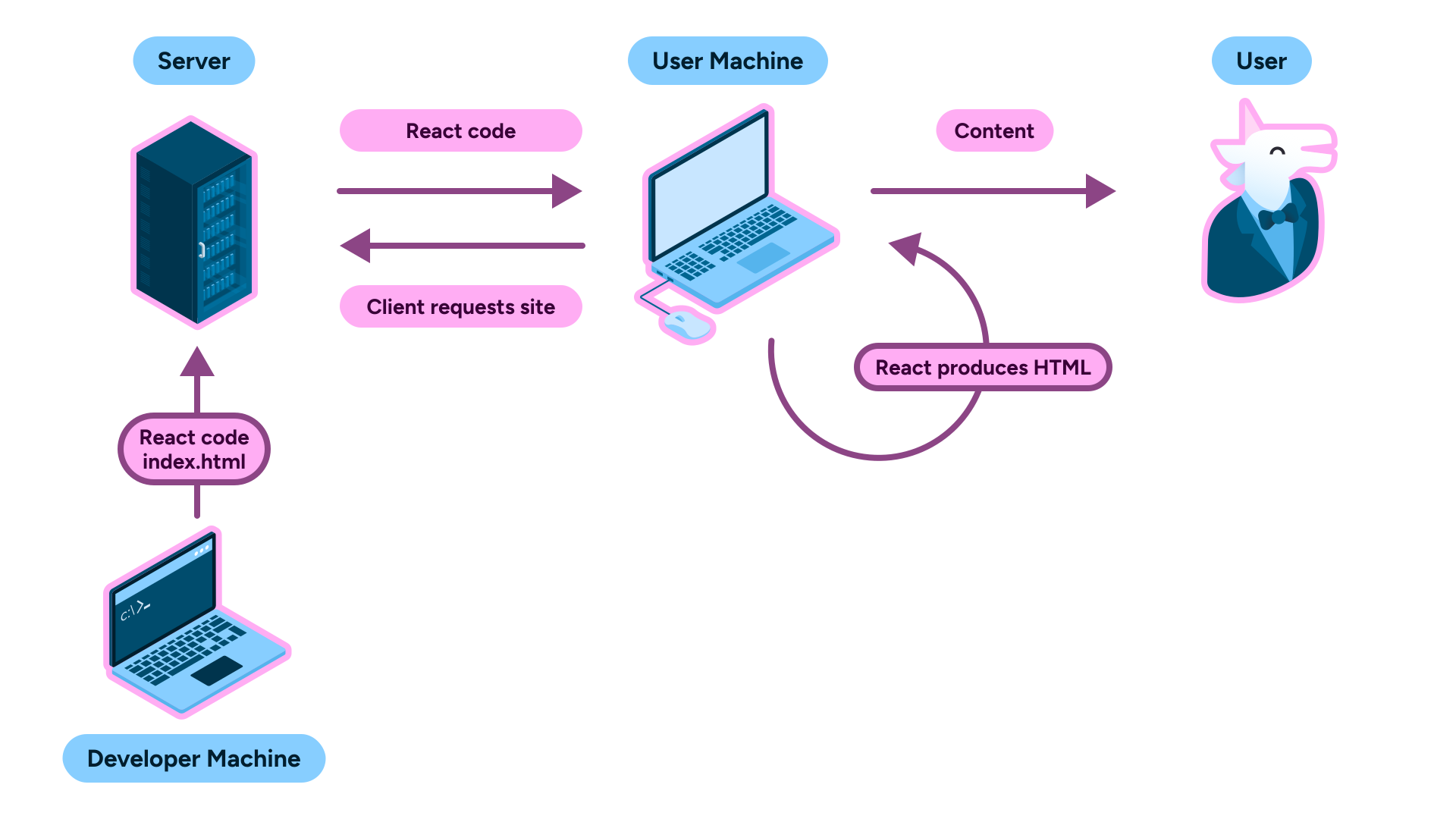
However, if we wanted to ship the full HTML bundle to the user, say to improve SEO, we might do that using "server-side rendering" (SSR):
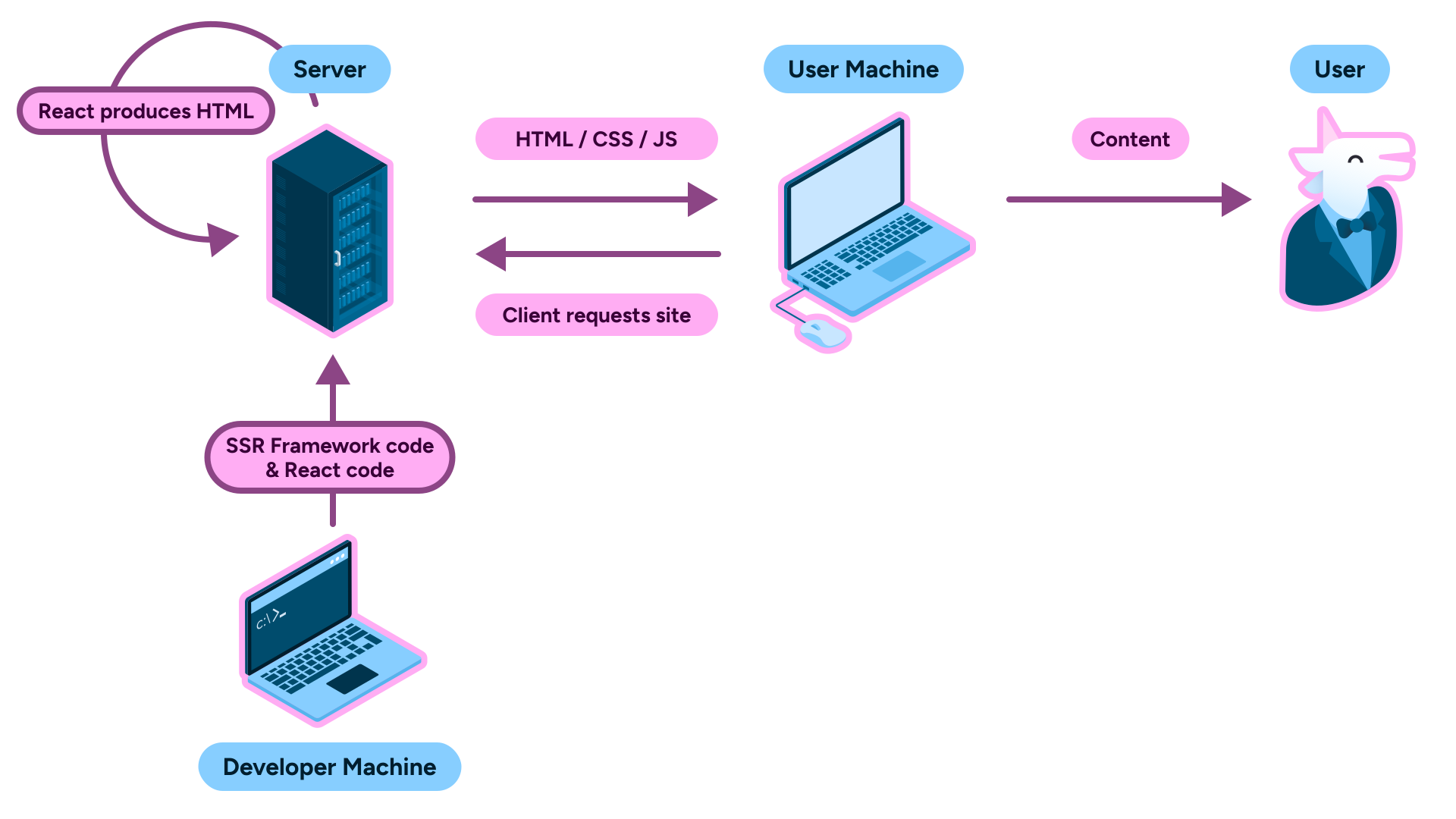
You can learn more about SSR and SSG apps in our article, which introduces the concepts.
However, especially in the context of apps, this can cause problems with initial layout. Because of the way the server executes the JavaScript required to generate the styles for your app, it may not properly hydrate the styling before your markup lands on the user's machine.
This again causes a FOUC but in a more extreme manner, since you now have to wait for your framework to replace the server-sent markup first as well as every step before it.
Compiled CSS-in-JS
So! We now know that CSS-in-JS, while great for developer experience (DX), has problems with performance.
Is there any way we can get the DX wins of CSS-in-JS while retaining the performance of other CSS solutions?
Indeed, dear reader! See, while some CSS-in-JS solutions rely on a JavaScript runtime on the user's machine to generate styles for us, others are able to generate the required CSS on the developer's machine, sidestepping problems with performance.
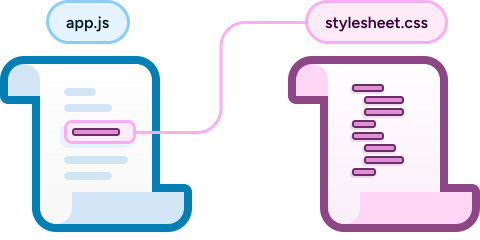
These CSS-in-JS solutions are able to fix their performance problems because they use "statistical analysis" to extract and compile the CSS from the inside of your JavaScript files into dedicated CSS files ahead-of-the-time.
What is statistical analysis?
Think of statistical analysis as a scan through your codebase looking for dedicated keywords. In our case, the compiled CSS-in-JS library looks for code it recognizes in app.js. When it detects code it recognizes as "CSS," it moves it into a brand new app_generated.css and a fresh variant of app.js called app_generated.js.
This app_generated.js file is the same as before, but with a different bit of code injecting the CSS file into the place you originally had CSS:

One such compiled CSS-in-JS library is called "PandaCSS." Its API allows us to take code like this:
- React
- Angular
- Vue
import { css } from "../styled-system/css";export function App() { return ( <div className={css({ bg: "red.400", height: "screen", width: "screen" })} /> );}And transform it into this:
<!DOCTYPE html><html lang="en"> <head> <style> .bg_red\.400 { background: var(--colors-red-400); } .w_screen { width: 100vw; } .h_screen { height: 100vh; } </style> </head> <body> <!-- ... --> </body></html>- React
- Angular
- Vue
// App.jsxexport function App() { return <div className="bg_red.400 h_screen w_screen" />;}React Panda - StackBlitz
Editimport { css } from "../styled-system/css";export function App() { return ( <div className={css({ bg: "red.400", height: "screen", width: "screen" })} /> );}Installing PandaCSS
Let's set up PandaCSS in our project!
To begin, install the dependencies using your package manager:
npm install --save-dev @pandacss/dev postcssCreate a file called postcss.config.json in Angular so that PostCSS knows to run PandaCSS:
{ "plugins": { "@pandacss/dev/postcss": {} }}Or in React / Vue using Vite we'll need to change the file to postcss.config.js:
export default { plugins: { "@pandacss/dev/postcss": {}, },};Then you'll want to configure a panda.config.ts file:
import { defineConfig } from "@pandacss/dev";export default defineConfig({ // Whether to use css reset preflight: true, // Where to look for your css declarations include: ["./src/**/*.{js,jsx,ts,tsx,vue,html}"], // Files to exclude exclude: [], // The output directory for your css system outdir: "styled-system",});Add the following to your global .css file:
/* src/styles.css */@layer reset, base, tokens, recipes, utilities;This is all executed at build time by a prepare command in your package.json file, so let's add that:
{ "scripts": {+ "prepare": "panda codegen", }}Finally, if you're using TypeScript we need to update our tsconfig.json file to include:
{ "compilerOptions": {+ "skipLibCheck": true }}That's it! You can now use PandaCSS in your projects!